Node Space Usage
This section provides a better understanding of the space usage information presented by the Longhorn UI.
Whole Cluster Space Usage
In the Dashboard page, Longhorn will show you the cluster space usage information:
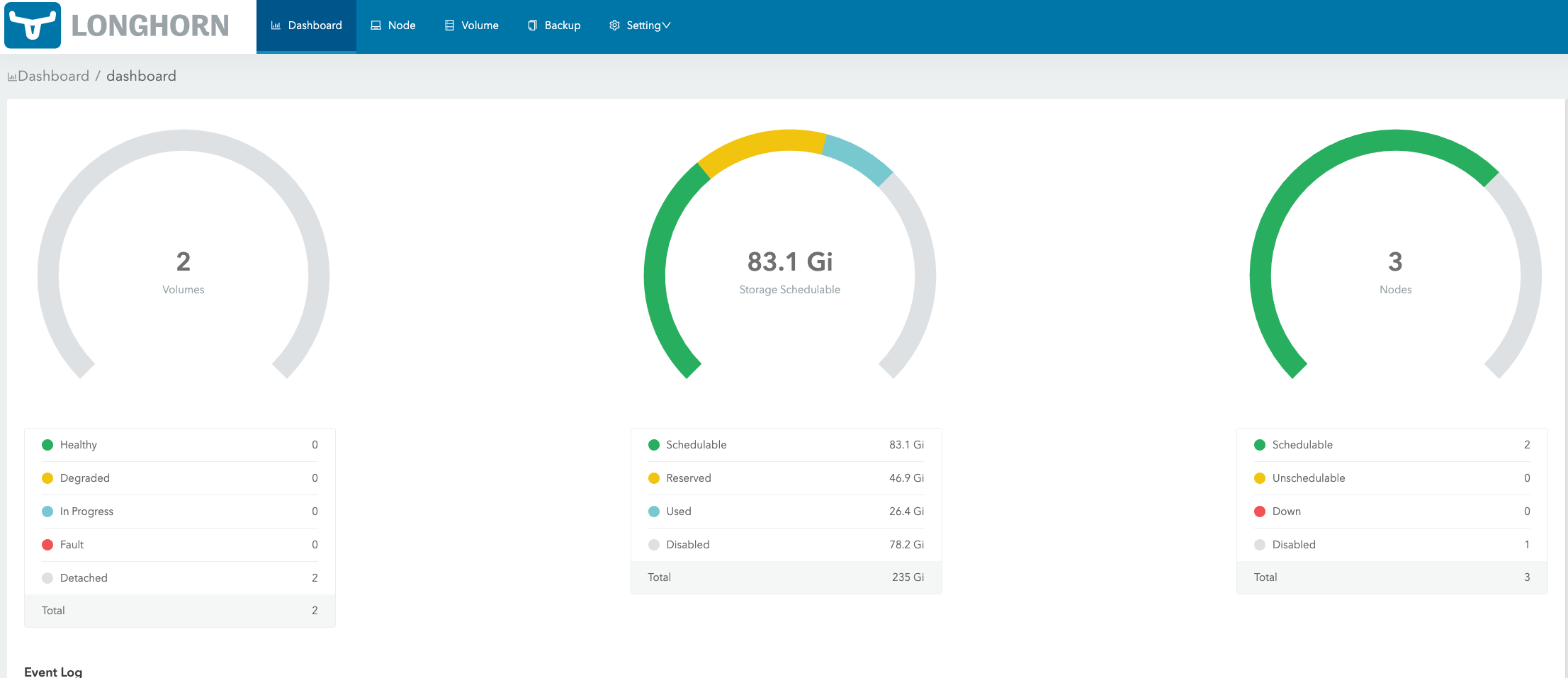
Schedulable: The actual space that can be used for Longhorn volume scheduling.
Reserved: The space reserved for other applications and system.
Used: The actual space that has been used by Longhorn, system and other applications.
Disabled: The total space of the disks/nodes on which Longhorn volumes are not allowed for scheduling.
Space Usage of Each Node
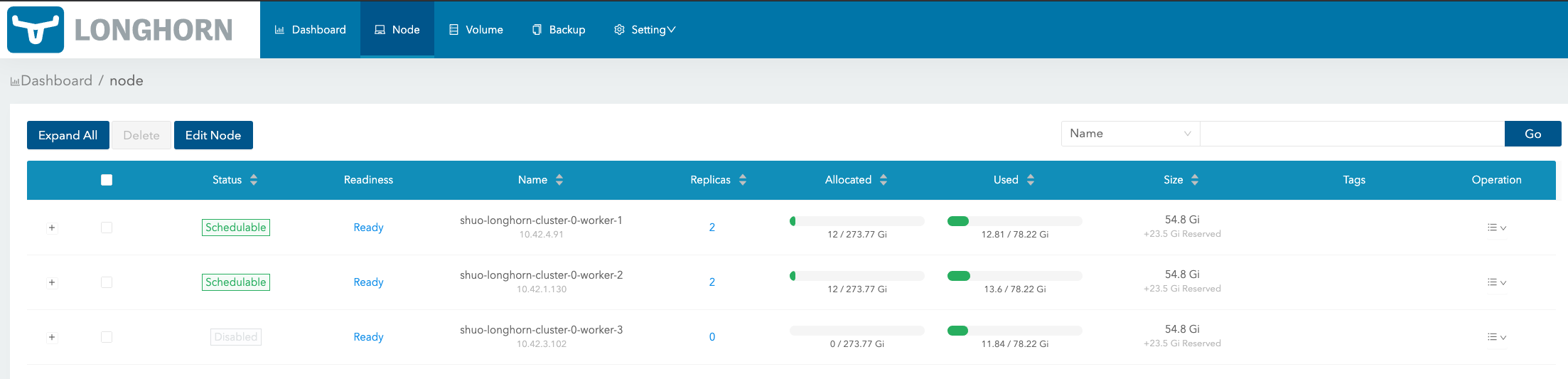
In the Node page, Longhorn will show the space allocation, schedule and usage info for each node. You can also view this detailed information via kubectl by inspecting the Longhorn Node Custom Resource (CR).
To view the disk capacity, reserved space, and scheduling state for a specific node (for example, ubuntu-lh-2):
kubectl get nodes.longhorn.io ubuntu-lh-2 -n longhorn-system -o yaml
Size column: The max actual available space that can be used by Longhorn volumes. It equals the total disk space of the node minus reserved space. In the CR, this is represented by storageMaximum.
Allocated column: The left number is the size that has been used for volume scheduling, and it does not mean the space has been used for the Longhorn volume data store. The right number is the max size for volume scheduling, which the result of Size multiplying Storage Over Provisioning Percentage. (In the above illustration, Storage Over Provisioning Percentage is 500.) Hence, the difference between the 2 numbers (let’s call it as the allocable space) determines if a volume replica can be scheduled to this node. In the CR, the scheduled size is storageScheduled.
Used column: The left part indicates the currently used space of this node. The whole bar indicates the total space of the node. In the CR, the available space is storageAvailable.
Notice that the allocable space may be greater than the actual available space of the node when setting Storage Over Provisioning Percentage to a value greater than 100. If the volumes are heavily used and lots of historical data will be stored in the volume snapshots, please be careful about using a large value for this setting. For more info about the setting, see here for details.
Note: The reserved space value configured for the disk is stored under
spec.disks.<disk-name>.storageReserved. These values map directly to those shown in the Longhorn UI.
View node disk metrics in table format
kubectl get nodes.longhorn.io -n longhorn-system -o json | jq -r '
  .items[]
  | . as $node
  | .status.diskStatus
  | to_entries[]
  | [
      $node.metadata.name,
      .value.diskPath,
      .value.storageAvailable,
      .value.storageMaximum,
      ($node.spec.disks[.key].storageReserved // "N/A"),
      .value.storageScheduled
    ]
  | @tsv
' | column -t

# Sample Output:
# ubuntu-lh-2  /var/lib/longhorn/  36175872000  51409092608  15422727782  2147483648
# ubuntu-lh-2  /mnt/extra-disk    10000000000  20000000000  5000000000   1000000000
Modify disk reserved space
To change how much space Longhorn must keep free on a disk:
Export the node spec:
kubectl get nodes.longhorn.io ubuntu-lh-2 -n longhorn-system -o yaml > lh-node.yaml

# replace ubuntu-lh-2 with your node name
Locate your disk entry under
spec.disksand edit (lh-node.yaml):spec: disks: default-disk-xxxx: path: /var/lib/longhorn/ storageReserved: 15422727782 # update this value to your desired reserved space in bytes (for example, 21474836480 for 20 GiB). Choose a value based on how much disk space you want to reserve for the system or other applications.Apply the changes:
kubectl apply -f lh-node.yaml
Longhorn recalculates disk schedulability immediately.
© 2019-2026 Longhorn Authors | Documentation Distributed under CC-BY-4.0
© 2026 The Linux Foundation. All rights reserved. The Linux Foundation has registered trademarks and uses trademarks. For a list of trademarks of The Linux Foundation, please see our Trademark Usage page.